
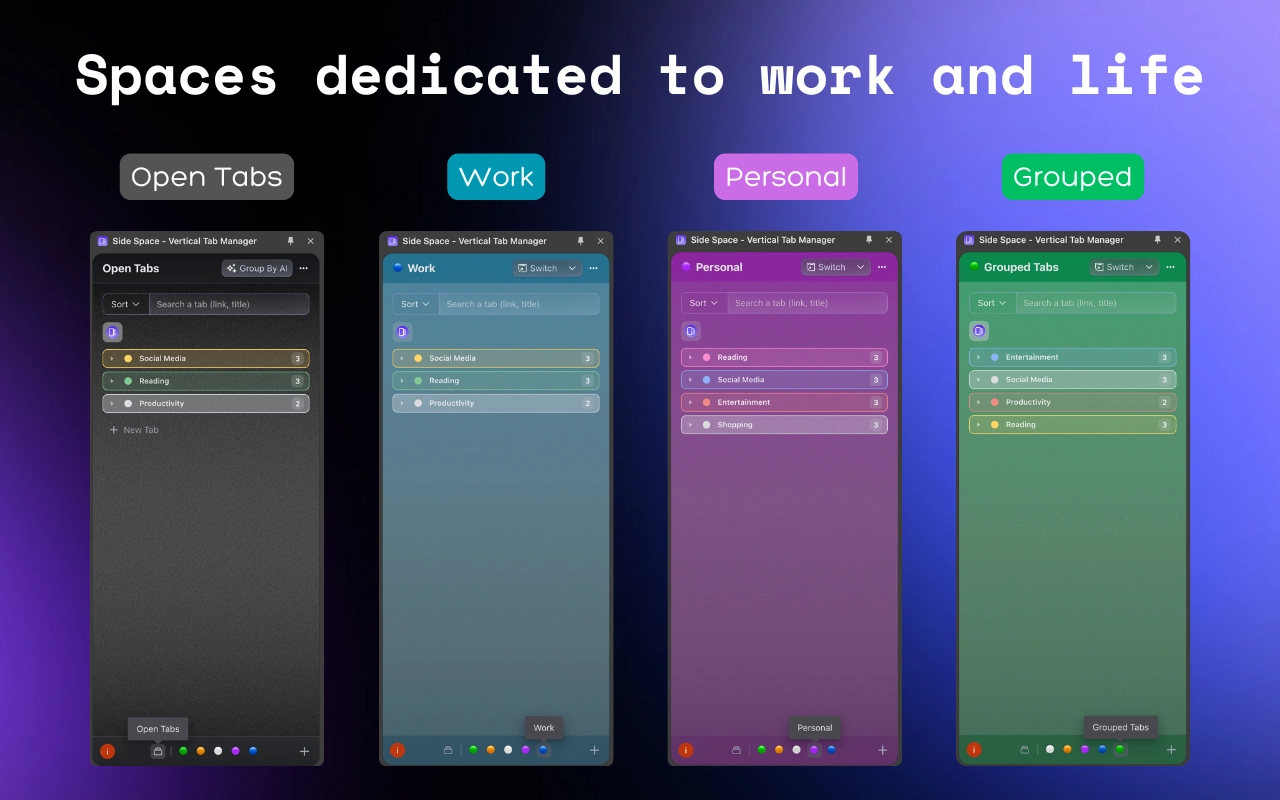
How to Manage All Your Spaces in One Place with the Space Management Feature
Introduction
With the growing number of spaces in Side Space, a centralized management hub makes it easier to keep tabs, groups, and spaces organized. This guide walks you through how Space Management helps you view, organize, and customize all your spaces in one place.
Accessing Space Management
To begin managing your spaces, open the Side Space extension settings and select the new Spaces Management section. This will launch a centralized interface where you can oversee all your spaces.
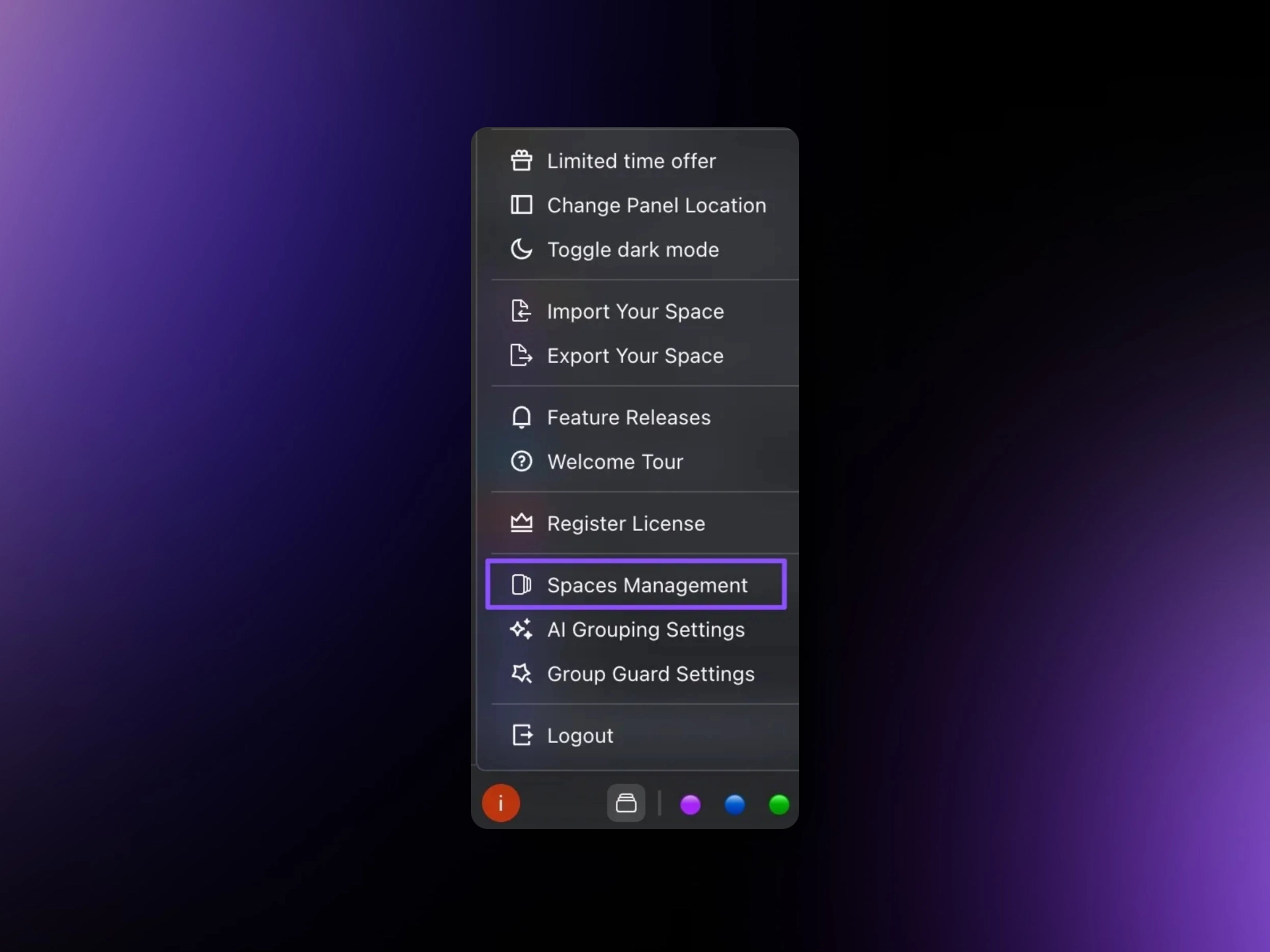
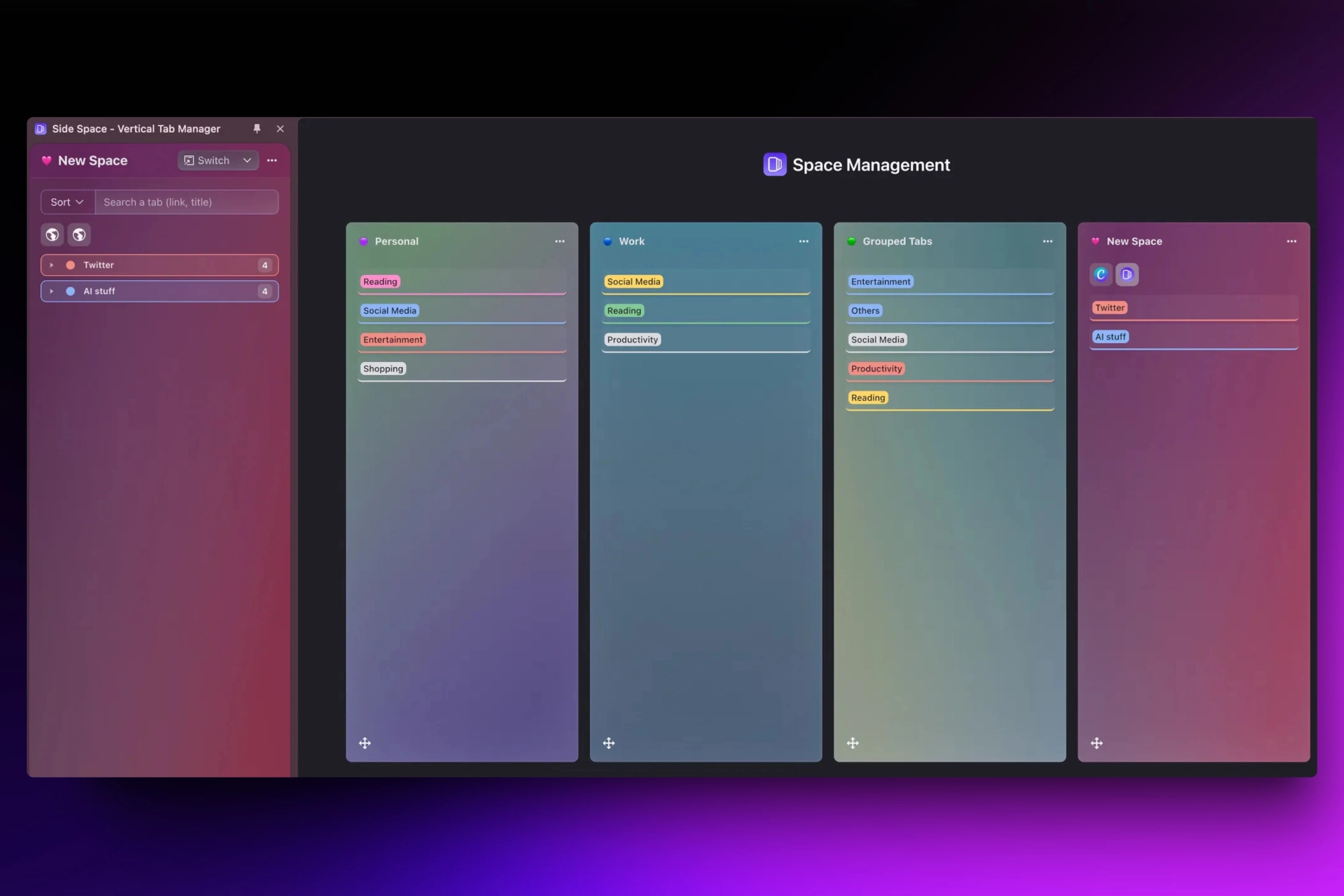
Manage Your Spaces on the Space Management Page
On the Space Management page, you can view and manage all your spaces. This centralized hub allows for efficient organization and customization of your spaces.
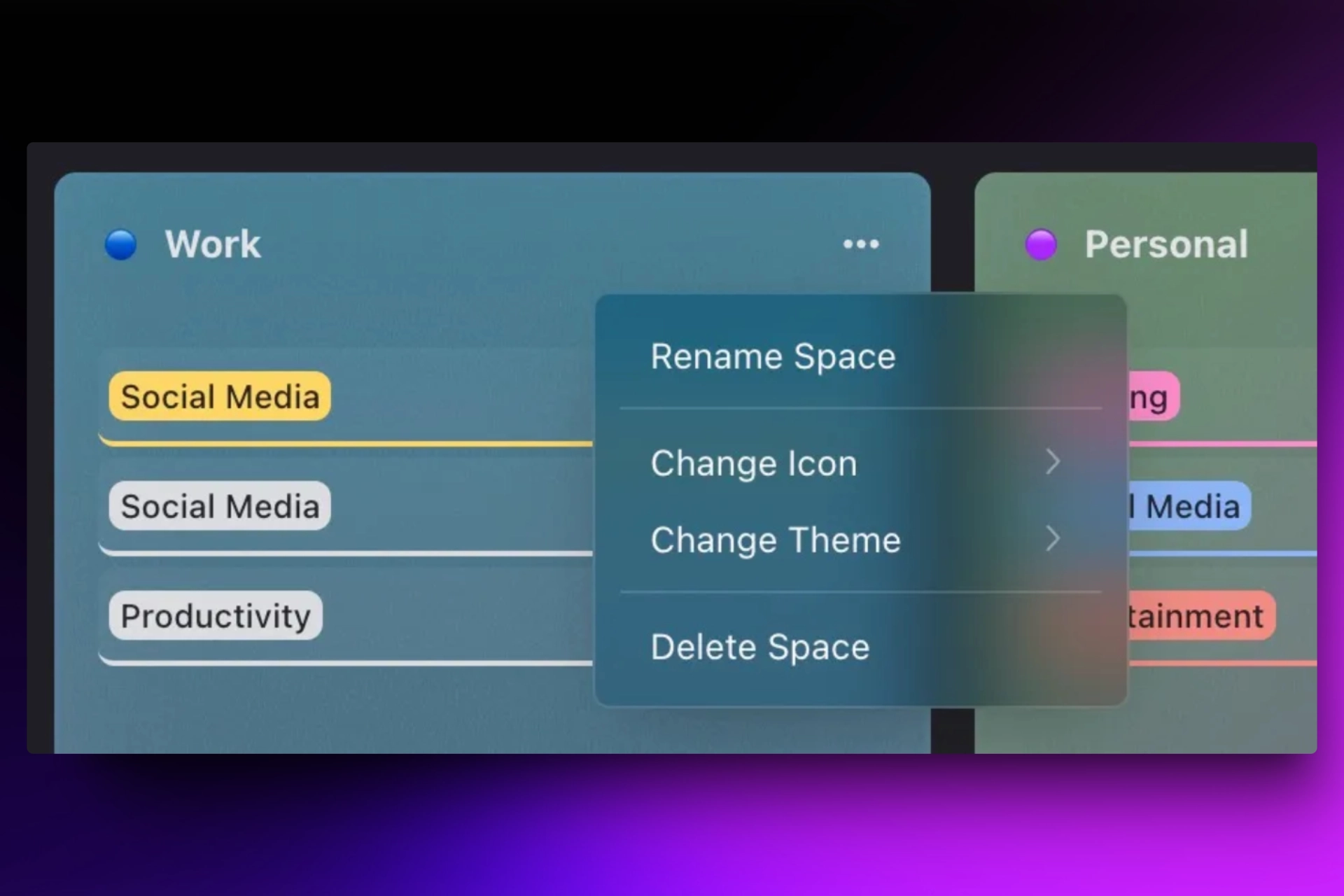
Rename, Customize, or Delete a Space
Within the Space Management page, you can rename a space, customize its icon and theme, or delete it as needed. This flexibility ensures that your spaces are tailored to your preferences.
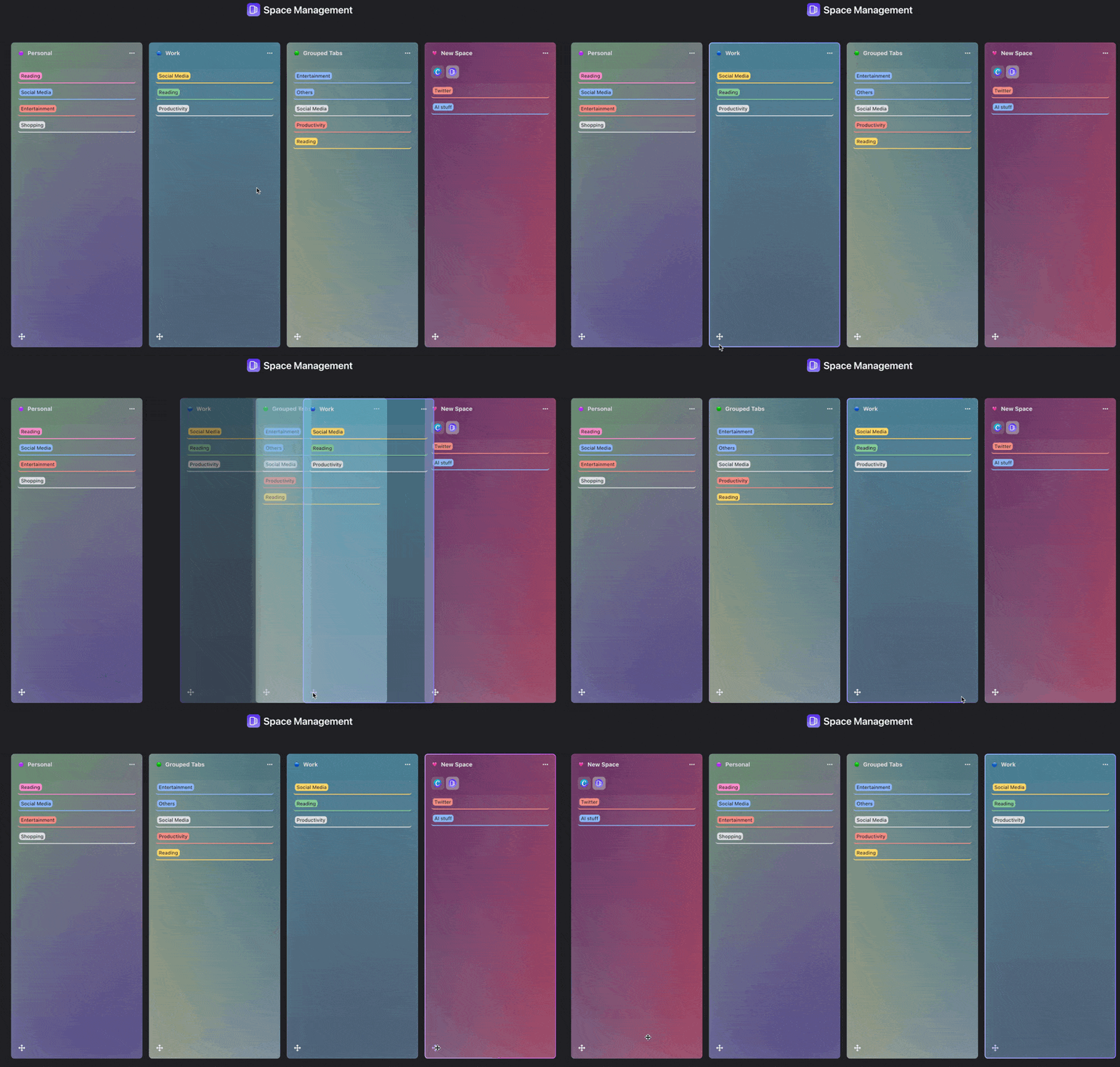
Reorder Spaces with Drag-and-Drop
You can easily change the order of your spaces by dragging and dropping them using the control at the left-bottom of each space. This intuitive feature helps you keep your spaces organized.
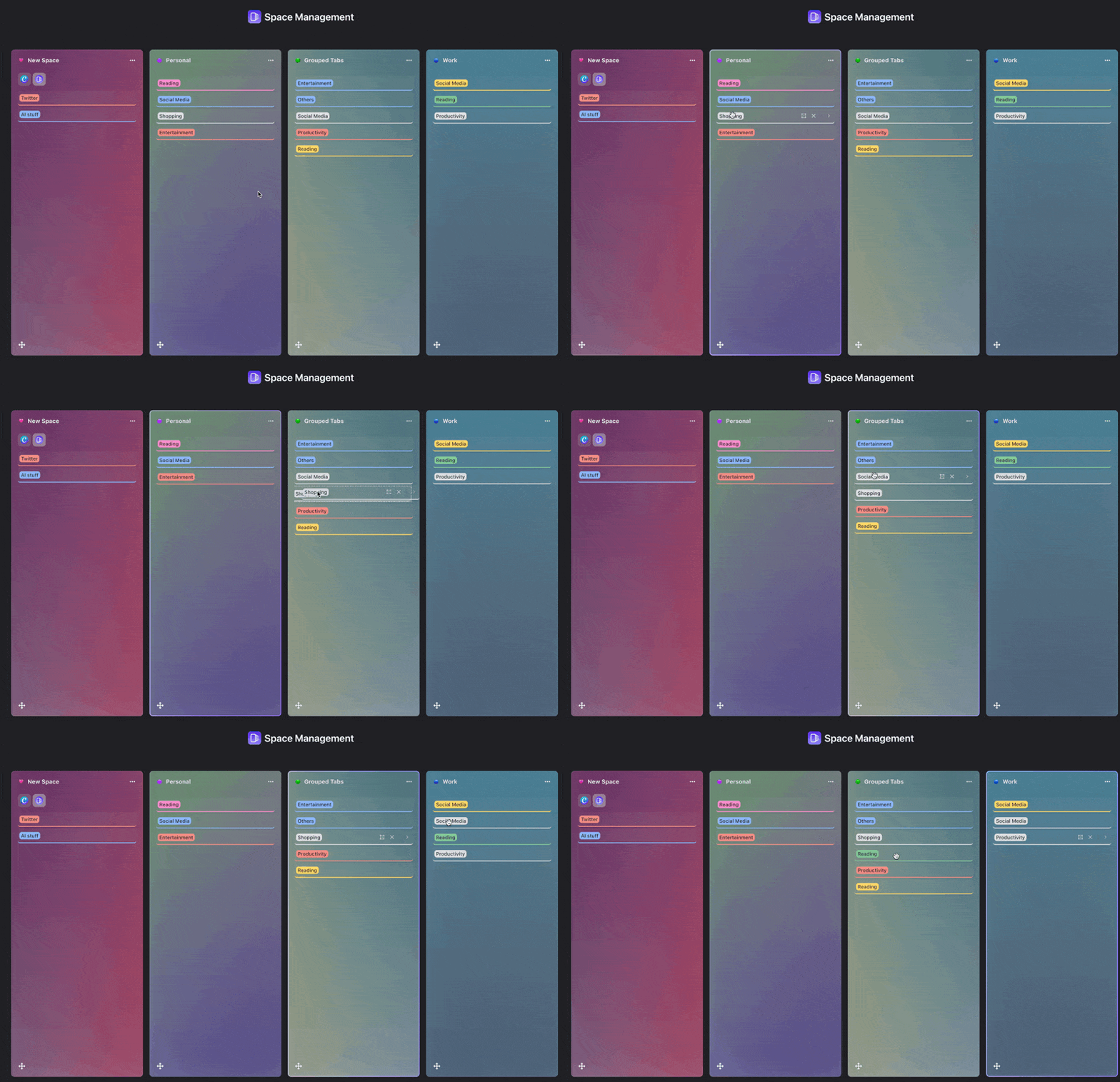
Move Groups to Different Spaces
The Space Management feature allows you to move groups to different spaces by simply dragging and dropping them. This is useful for organizing your workflow and keeping related groups together.
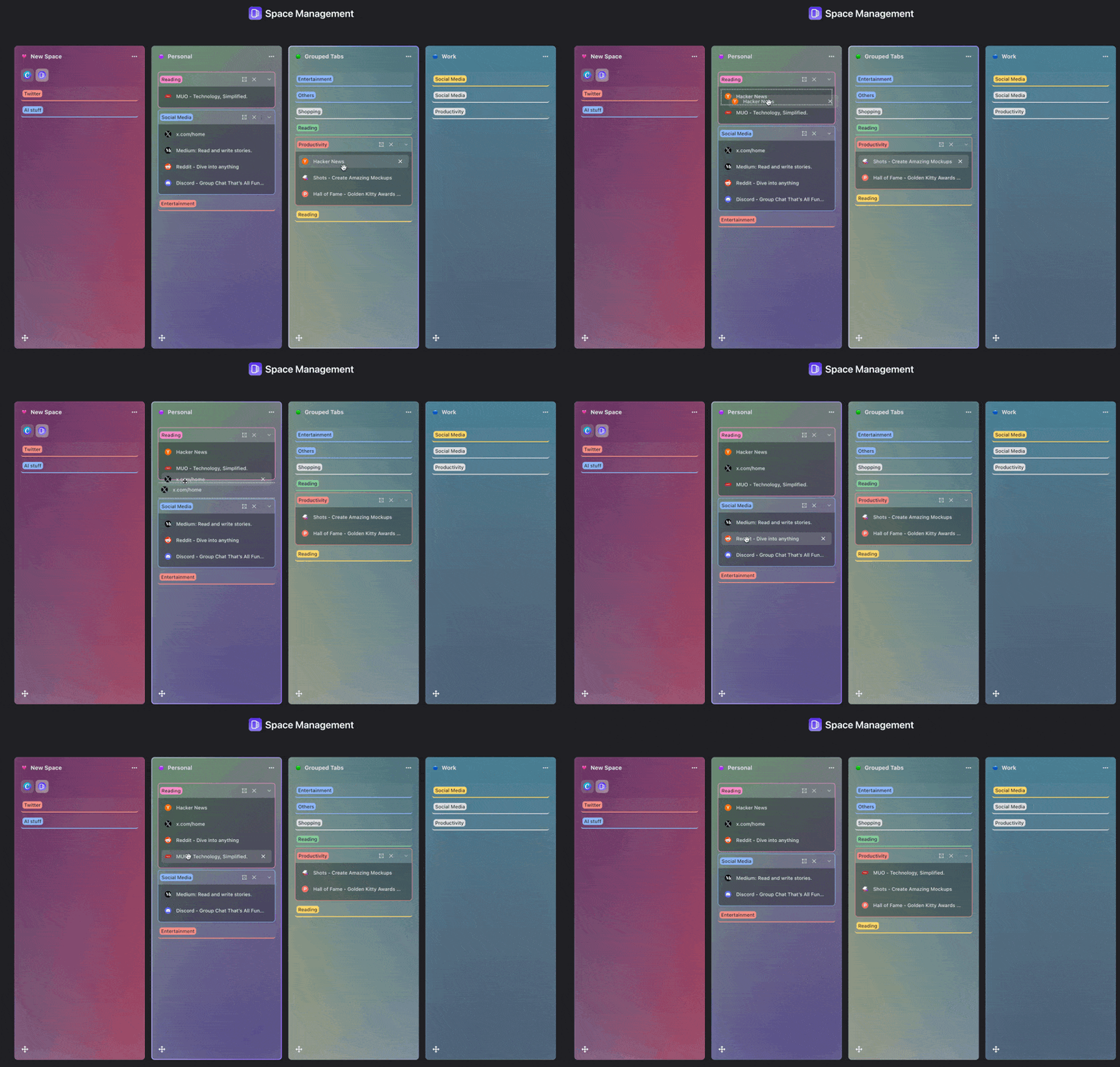
Move Tabs to Different Groups
To further enhance organization, you can move tabs to different groups within your space or to another space. This ensures that all your tabs are categorized and easy to find.
Conclusion
The Space Management feature in the Side Space extension offers a comprehensive solution for managing all your spaces in one place. By providing tools for customization, reordering, and organization, this feature saves time and helps organize tabs, groups, and spaces for quick access.
As we continue to innovate, users can look forward to more advanced features that will further improve their browsing experience.
Other Tutorials
- Introducing the Concept of Spaces
- Introducing Group Guard Settings
- How to Change the Location of Side Panel in Chrome?
- Download Chrome Extension