
What to Do If Chrome Tabs Won’t Sync?
If you work across a laptop, desktop, and phone, tab syncing isn’t a “nice to have”, it’s how you keep projects moving. But when sync tabs on Chrome suddenly stops working, you’re left re-opening research, losing context, and breaking your workflow.
This guide shows you how to sync tabs on Chrome across devices using Chrome’s official sync method, then gives you a practical checklist for what to do when Google open tabs won’t sync on Chrome. If you keep hitting the same limits, you’ll also see a more reliable approach for synced tabs on Chrome across devices and even across different browsers.
How to Sync Tabs in Chrome Across Devices (Official Method)
Chrome can sync open tabs (and more) when you’re signed in and Sync is turned on. Here’s the cleanest way to set up tab sync for Chrome on desktop.
Step-by-step: enable Chrome Sync for open tabs
- Open Chrome on your computer.
- Click your Profile icon (top-right).
- Select Turn on sync…
- Sign in with the Google Account you want to use everywhere.
- Confirm Yes, I’m in (or similar prompt).
- Go to Settings → You and Google → Sync and Google services (wording may vary).
- Under Sync, ensure it’s On and your data types include what you need (especially Open tabs / History depending on your setup).
Tip: Use separate Chrome profiles if you use multiple Google accounts (work vs personal). Mixing accounts is one of the most common causes of “tabs not syncing.”
How to sync tabs on Chrome across devices
- Sign into Chrome on every device using the same Google account.
- Turn on Chrome Sync.
- Verify Open tabs/History is included in Sync settings.
- Check Tabs from other devices in History (UI varies by Chrome version).
Where to find your synced tabs in Chrome
Once Sync is running, you can access synced tabs on Chrome from other devices in a few common places (UI varies by version), such as:
- History menus (often includes “Tabs from other devices”)
- Search/address bar suggestions tied to synced history
- Your Google account activity tied to Chrome Sync
If you’ve done the steps above and still see chrome sync tabs missing, move to troubleshooting.
Why Chrome Tabs Sometimes Don’t Sync
Knowing the “why” helps you fix it faster. Most Chrome tab sync failures come from:
- Sync isn’t actually enabled (signed in ≠ syncing)
- Wrong Google account on one device
- Sync settings misconfigured (tabs/history not included)
- Network or sign-in issues (captive portals, VPN quirks, expired auth)
- Outdated browser version causing compatibility or caching weirdness
- Sync conflicts or corrupted local cache (rare, but real)
What to Do If Chrome Tabs Won’t Sync
1) Confirm you’re signed into the same Google account
Symptom: You swear sync is on, but nothing matches across devices.
Fix:
- On every device, open Chrome → Profile icon
- Verify the exact same email is logged in
- If it’s different, switch accounts or create a separate Chrome profile
2) Make sure Sync is ON (not just “signed in”)
Symptom: Bookmarks or passwords might sync, but tabs don’t, or nothing syncs.
Fix:
- Chrome Settings → You and Google → Sync
- Turn Sync On
- If there’s a prompt to confirm, accept it
3) Check Sync data types (tabs/history)
Symptom: Bookmarks sync, but chrome sync tabs doesn’t.
Fix:
- In Sync settings, review what’s included
- EnableOpen tabs (or enableHistory if your Chrome version ties tab discovery to history syncing)
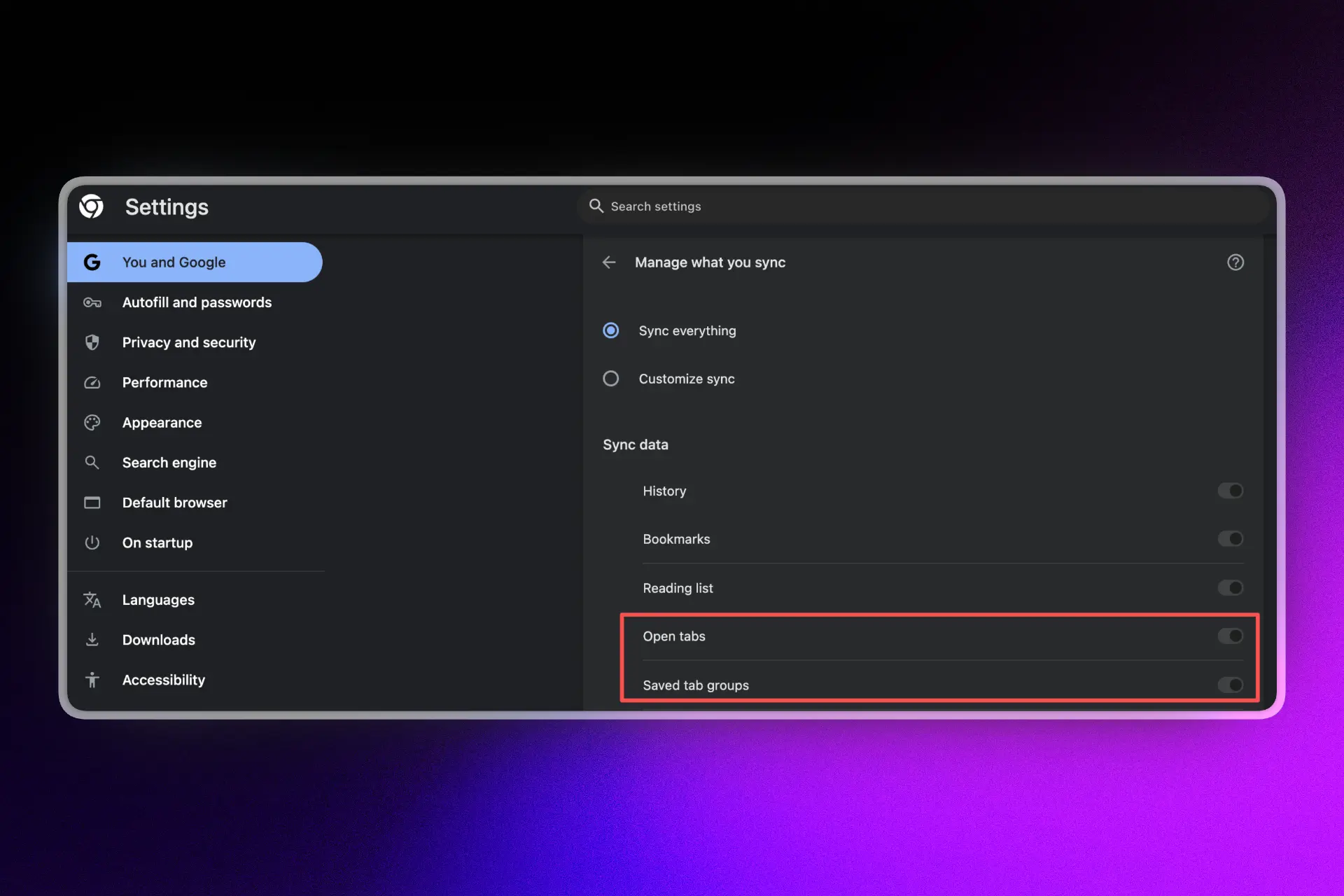
Enable open tabs and saved tab groups in Chrome sync settings
4) Turn Sync off → restart Chrome → turn Sync back on
Symptom: Sync looks on, but it’s “stuck.”
Fix:
- Turn Sync Off
- Close Chrome completely (quit the app, don’t just close the window)
- Reopen Chrome
- Turn Sync On again
5) Update Chrome on every device
Symptom: One device syncs, another doesn’t; behavior is inconsistent.
Fix:
- Update Chrome on all devices
- Restart after updating
6) Rule out network and sign-in issues
Symptom: Sync works sometimes, fails on certain networks.
Fix:
- Try another network (mobile hotspot is a quick test)
- Temporarily disable VPN/proxy extensions
- Confirm you can access Google services normally (account sign-in, Gmail, etc.)
7) Check for extension interference (quick isolation test)
Symptom: Tab sync breaks after installing privacy/security extensions.
Fix:
- Open an Incognito window with extensions disabled (or temporarily disable suspect extensions)
- Re-test syncing behavior
8) If Google open tabs won’t sync on Chrome: wait + verify account health
Symptom: Everything is configured correctly, but tabs lag or never appear.
Fix:
- Sync can be delayed, give it a short window
- Make sure your Google Account isn’t prompting security verification on one device
- Re-authenticate if needed (sign out/in to Chrome)
Sync tabs on Chrome: the fastest fix
If Chrome tabs won’t sync, do these in order:
- Confirm the same Google account is signed in on every device
- Chrome → Profile icon → check the email address.
- Turn on Chrome Sync (sign-in is not enough)
- Chrome Settings → You and Google → Sync → Turn on.
- Enable the right sync items
- In Sync settings, ensure Open tabs (and/or History) is enabled.
- Restart Chrome (fully quit + reopen)
- On desktop: Quit Chrome completely, then reopen.
- Update Chrome on all devices
- Mismatched versions can cause partial or delayed syncing.
- Fix network/sign-in issues
- Try a different network (hotspot test).
- Temporarily disable VPN/proxy.
- Re-authenticate if Google prompts security checks.
- Test extension interference
- Temporarily disable privacy/security extensions and retry.
- Toggle Sync Off → On
- If Sync is “stuck,” turning it off/on often re-initializes syncing.
The Real Limitation of Chrome Tab Sync (Even When It Works)
Chrome Sync is convenient, but it has structural limitations that matter if you rely on tabs for deep work:
- It’s Chrome-only (your workflow might include Brave, Edge, Firefox, etc.)
- It depends heavily on Google account + sync stability
- It’s not designed for session recovery, workspace management, or “project-based” tab organization
- When it fails, you often get partial sync, the hardest kind to trust
If you’ve repeatedly searched how to fix sync tabs on Chrome across devices or “chrome sync tabs not working,” it might be time to upgrade the system, not just troubleshoot it.
A Better Alternative When Chrome Tab Sync Keeps Failing: Side Space
If you want reliable syncing as part of a bigger workflow, Side Space is a productivity upgrade, not just a workaround.
What Side Space does better than native Chrome syncing
- Cloud sync across devices so your spaces stay consistent, every time you open Side Space, your tabs saved in spaces will be automatically synced to Cloud.
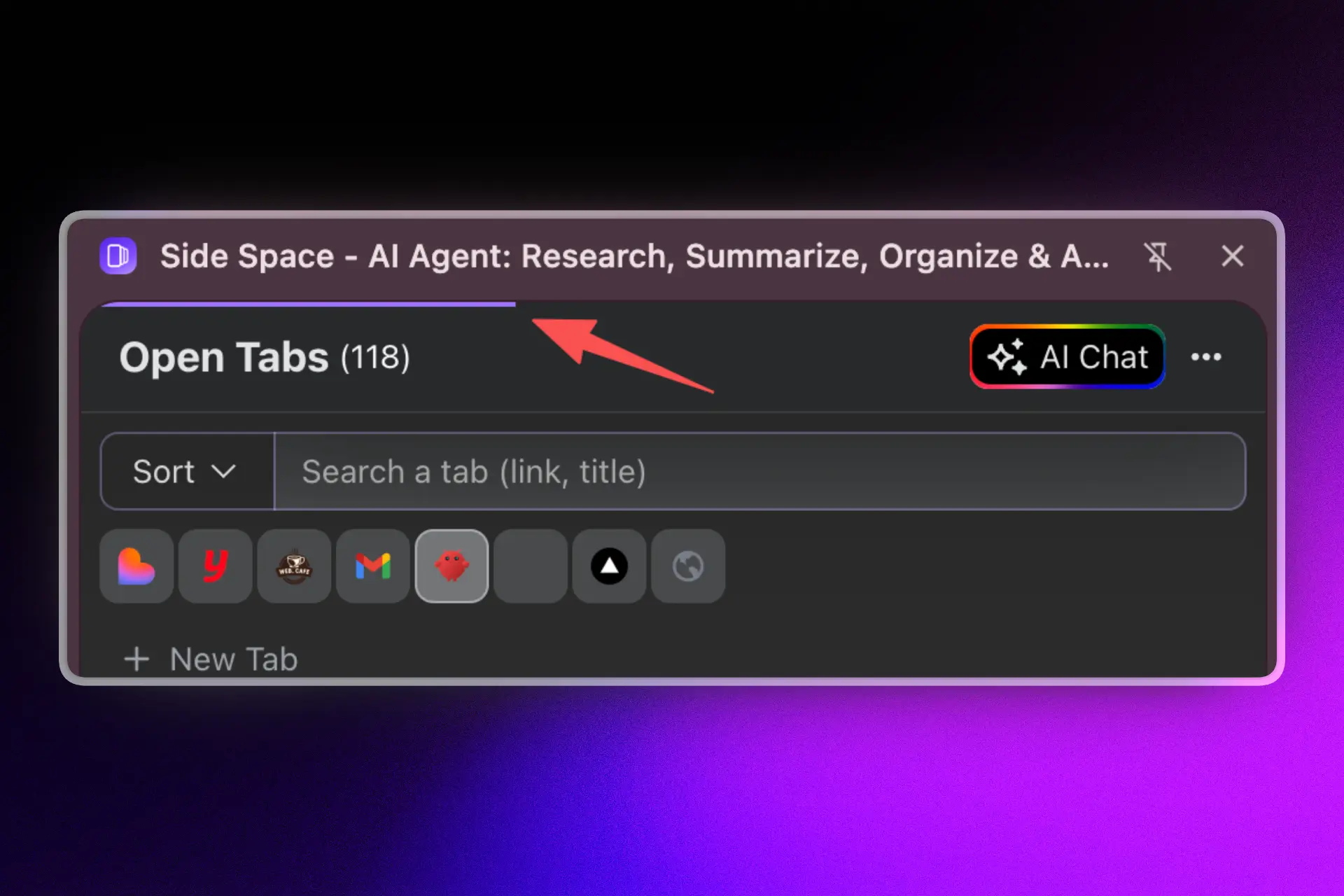
tabs automatically synced to Cloud
- Sync tabs across devices and across browsers, not just ChromeSupports Chromium browsers likeChrome, Brave, Edge, plusFirefox, and newer browsers likeCometandZen
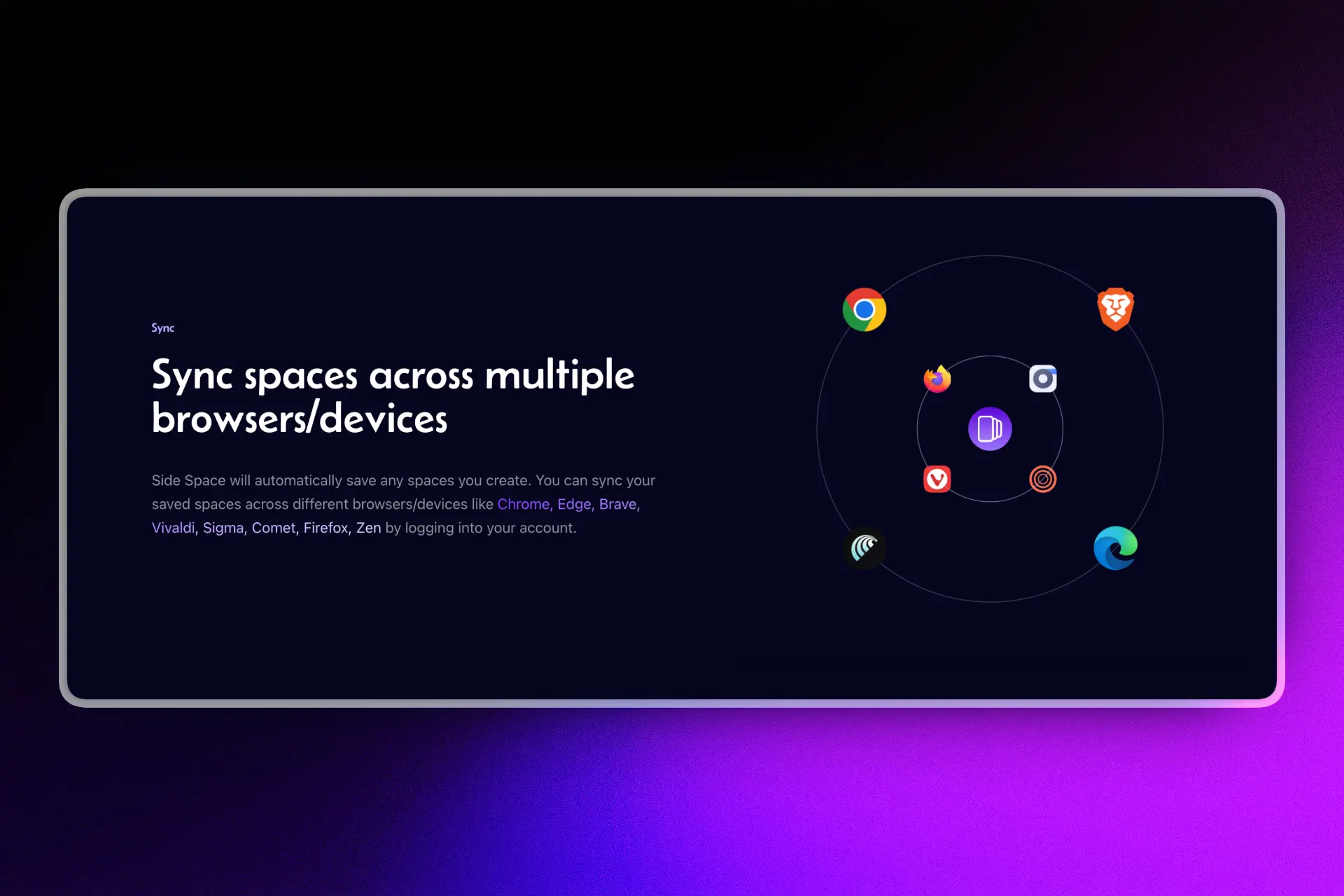
Sync tabs across multiple browsers/devices
- **AI agent for recovery: **restore recently closed tabs or even entire sessions with a single natural-language command(This is the difference between “maybe I can find it in history” and “get my workspace back now.”)
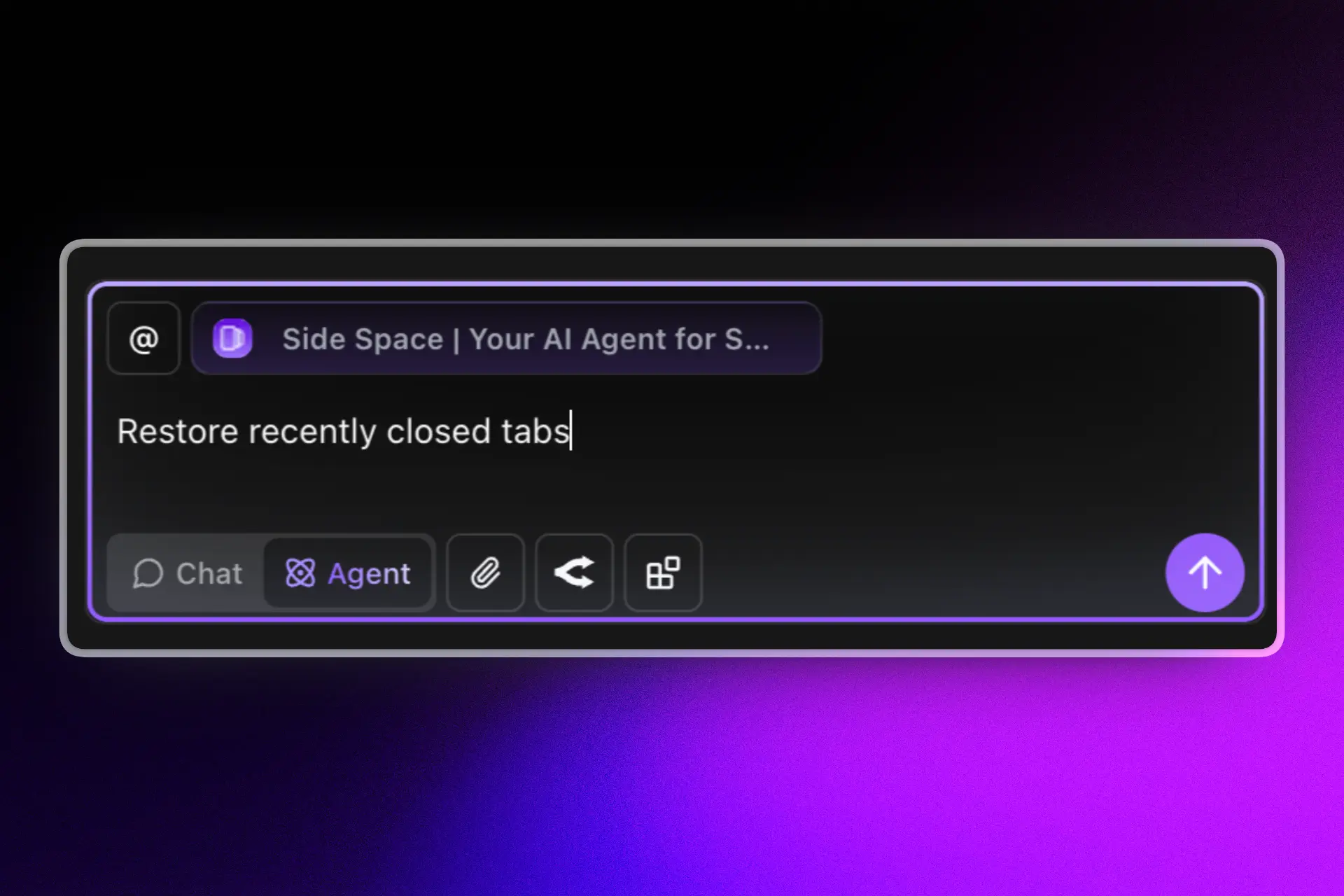
restore recently closed tabs
- Extra features that reduce tab chaos:
- Vertical tab management in a side panel
- De-duplicate tabs
- Suspend tabs to reduce memory load
- Search tabs/spaces fast
- Save/restore tab groups
When Side Space is the right move
Side Space is especially useful if you:
- Switch devices constantly (office laptop ↔ home desktop ↔ travel)
- Use multiple browsers for different contexts (work vs personal, testing vs production)
- Lose time rebuilding research sessions
- Want a “workspace” system, not just a sync toggle
How to set up Spaces and Cloud Sync
Refer to the help center here:
https://www.sidespace.app/help/getting-started
FAQ
How do I sync tabs on Chrome across devices?
Sign into Chrome with the same Google account on each device, turn on Chrome Sync, and ensure “Open tabs” (or related history/tab settings) are enabled.
Why are my synced tabs on Chrome not showing up?
Common reasons include: wrong Google account on one device, Sync not enabled, tab/history sync settings off, network/auth issues, or an outdated browser.
What to do if Chrome tabs won’t sync even after enabling Sync?
Try turning Sync off/on, restarting Chrome, updating the browser, checking network/VPN issues, and testing whether extensions are interfering.
Does Chrome sync tabs across different browsers?
No. Chrome Sync is designed for Chrome. If you need cross-browser syncing, you’ll want a dedicated solution such as Side Space.
Is there a better tab sync for Chrome when Chrome Sync is unreliable?
Yes, Side Space adds cloud sync plus workspace features and can sync tabs across devices and multiple browsers (Chrome, Brave, Dia, Edge, Firefox, Comet, Zen).
Chrome Sync vs Side Space
If you’ve tried to sync tabs on Chrome across devices but still lose sessions or switch between browsers, Side Space is a workflow upgrade, not just a sync toggle.
| Feature | Chrome Sync | Side Space |
|---|---|---|
| Sync tabs across devices | Yes (when Sync works) | Yes (cloud sync designed for it) |
| Sync tabs across browsers | No (Chrome-only) | Yes (Chrome, Brave, Edge, Firefox, Comet, Zen) |
| Works without Google account | No | Yes (product account-based cloud sync) |
| Reliability when switching devices often | Can be inconsistent / delayed | Built for workflow continuity |
| Session recovery (restore full work context) | Limited (history-based, manual) | AI-assisted session/tab restore via natural-language command |
| Workspace organization | Basic (tabs + history) | Spaces, vertical tab workflow, search, grouping |
| De-duplicate tabs | No | Yes |
| Suspend tabs (reduce memory) | Not native | Yes |
| Best for | Casual multi-device browsing | Professionals, researchers, heavy tab users, cross-browser workflows |
If you just need the basics, the official approach can solve most problems: confirm your account, turn on Sync, verify settings, update Chrome, and eliminate network/extension conflicts.
But if you keep running into sync tabs on Chrome failures, or you work across multiple browsers, Chrome’s built-in sync is often too fragile for a serious workflow.
If you want a more reliable way to keep your tabs and sessions available everywhere, try Side Space as a long-term productivity upgrade for chrome sync tabs and beyond.
If your work depends on keeping context across devices, set up Side Space cloud sync and stop rebuilding sessions from scratch.